Sunday, March 14, 2021

Apple MacBook Air M1 for Network Engineers Part 1

Parts 2 -5 are now published. You can find them 

I haven't used a Mac as a daily driver for a few years. I switched over to Ubuntu when I started working on my python, Git, and dev skills for the Cisco Devnet program. Ubuntu is a great platform for dev work because there are so many free, open-source tools and it will run on almost any hardware from a Raspberry Pi to a maxed-out desktop. 

But I had to have a new Mac once the ARM-based Apple Silicon Macs were announced! Battery life was the biggest factor but I also wanted the instant-on, iPad-like performance of the Apple Silicon. It makes me smile every time I open the lid and it is just ready to go. Add in Touch-ID, Retina display, and the Big Sur version of macOS and it made the money jump right out of my wallet!

I hadn't used Big Sur since my current MacBook is a 2012 MacBook Pro, so I had some research to do. Luckily there are plenty of YouTube videos with tips on setting up the new M1 Macs and on the new features of Big Sur.  

Some videos to get you started:

Some useful webpages

Search for emails in Mail on Mac - If you decide to use Apple Mail, this is useful.


I also used a few podcasts:

  • Mac Geek Gab
  • Mac Power Users
  • Automators

to get up to speed. 

They are two different kinds of podcasts. Mac Geek Gab focuses on "Cool Stuff Found" which is hardware/software that works with the Mac and "Quick Tips" which are tips on using IOS and macOS.

Mac Power Users is a podcast on getting maximum productivity out of macOS. I don't use most of the software that they recommend. Most of the software is subscription-based and it gets out of control fast. But, they offer a lot of productivity tips for macOS itself and I find the podcast worth my time to listen to.

One quick tip for wireless:

Hold down the option key while clicking on the wifi icon to get additional information on the connection. It's great to be able to see the channel, MCS, RSSI, Noise Floor, transmit rate, and Phy Mode instantly.


One quick tip for Bluetooth:

If you are having trouble with Bluetooth devices you can try resetting the Bluetooth module. Simply press the Shift + Option keys, then click on the Bluetooth icon in the menu bar. You will see an option to "Reset the Bluetooth module". Click on it and the Bluetooth will be reset. 

You won't have to re-pair the devices, this just resets the Bluetooth module. 


As you can see, you can factory reset all connected Apple devices or remove all devices.

TIP: If you need to save a file to a system location such as an nmap script to "/usr/loca/share/nmap/scripts", you can press shift+cmd+g" to open a "go to folder" dialog.  Type the path into the dialog. Tab completion is supported.


Initial Setup

Apple has a startup script that did a good job of getting me logged in and working. But I learned a lot from the videos and podcasts so I did some customizing.

Preferences

If you are moving from Windows or Linux, macOS has some defaults that you will probably want to change. The first thing I did was use the System Preferences app to fix them. On macOS, you move the mouse to the top left of the screen and click on the Apple icon to open system preferences.


Change the view to Organize alphabetically


On the View menu, select "Organize Alphabetically" instead of the default "Organize by Categories".


Now preferences will look like this:


You can also hide any icons that you are sure you won't need. On the View menu, click Customize. Checkmarks will appear on each icon. Uncheck any that you don't want to see.


General Category

Show scroll bars:

    Always


This turns the scroll bars on all the time. The default is to hide them until you click into a window in Finder. I find that very annoying.


Apple ID

    iCloud Drive, options - turn off Desktop & Documents


If you don't do this and you are on-site with no Internet service your files will not be available


Security & Privacy


General

You can set a message that will show on the lock screen. I do this in case a customer doesn't know it's mine and sees it in the data center.

  • Click the lock in the lower left and enter your password. 
  • Put a check in the box next to "Show a message when the screen is locked.
  • Click on the drop-down "Set Lock Message..."

  • Enter your message and click OK.
  • Click the lock again to lock the General settings


Firewall

By default the firewall is disabled. You should enable it.
    

    Firewall
        Click - Turn On Firewall


Trackpad

    Point & Click

  • A lot of Mac users check the "Tap to Click" option. I tried it and didn't like it. You should give it a shot, maybe it will work for you.
  • Click - Set to Firm


More Gestures

        Click the More Gestures tab and enable App Expose. I used the Swipe down with four fingers gesture.


 App Expose is used to show all windows of an application on the screen. 


I found that in the Mission Control preference panel you can setup "Application Windows" to use different keys. I set the CMD key on the right side to show the application windows. I like that better than the four-finger swipe.


Display

Night Shift will change the display color slightly towards to warmer end of the spectrum. This is supposed to help you relax when using the laptop at night.  I have it set to run from sunset to sunrise. When it activates, a checkmark will appear in the "Turn on Until Sunrise" box.


Desktop

    Apple, Colors

    I'm going for maximum battery life and minimum distraction so I set the desktop to solid black. One interesting side effect is that I use a DisplayLink monitor in the field. While setting it up I thought it wasn't working. After some time troubleshooting, I realized that with no apps moved to it I was looking at the black desktop and it was working! Just a heads up.


    Screen Savers - set up Hot Corners 

        If you hold down the Option key while selecting a corner in Preferences then the corner isn't active unless you also hold down the Option key. I use the Apple icon a lot and this prevents me from showing the desktop when I meant to show the icon.


        Top Left - Option+Desktop

        Bottom Left - Mission Control

        Top Right - Notification Center

        Bottom Right - Launchpad


Accessibility

I like to be able to move windows with the trackpad so I enable dragging.
    Pointer Control, Trackpad Options
          Enable Dragging - three-finger drag


Dock and Menu Bar

I like the dock to be smaller than the default and to auto-hide. I also like to have the menu bar at the top auto-hide. This is a personal preference and I find that most people don't like it. It's worth trying.

    Put a check in Magnification. Adjust the slider to suit. I like about 60%
    Under Position on Screen, select Left.
    Put a check in Automatically hide and show the Dock
    Menu Bar - Check Automatically hide and show the menu bar


Do Not Disturb

In keeping with the minimum distraction, maximum productivity theme I want quick access to the Do Not Disturb options.

    Put a check in Show in Menu Bar and select Always


Keyboard Brightness
  Put a check in Show in Menu Bar


 Battery
   Put a check in Show Percentage


 Clock 
    Most users won't want my clock settings. I prefer 24-hour format so that there is no confusion between 06:00AM and 6:00PM. I am also fanatical about using a stopwatch and I want to see seconds. It drives me crazy that on the iPhone the clock app has no option to display seconds. 

    If anyone is interested, it takes me on average 29 seconds from when I turn the ignition off until I am pumping gas at Costco. I have done 27 seconds, and occasionally 30 seconds. (Update - Costco now has the Tap to Pay on the pumps. It has cut 5 seconds off my time.)

    Finally, with my ADHD I can lose all track of time and work on a task for far too long, so the Mac announces the time every 15 minutes.
   
       Put a check in Use 24 hour clock
       Put a check in Flash the time separators
       Put a check in Display the time with seconds
       Put a check in Announce the time


Dock

    Apple includes a lot of apps on the dock. I find that I don't use many of the built-in apps so I removed the ones I don't expect to use. To do that:

    Right-click, select Options, Remove from Dock.


View menu

   Switch to the Finder app. In the Menu Bar, click on View 

    Put a check in use stacks. This organizes the files on the desktop into neat folders. You can uncheck to quickly go back to showing individual files.

     Click on Show Path bar, and show status bar

Customize the toolbar

While in the view menu, click on Customize Toolbars...

I added "Get Info" to the bar and changed "Show" to text and Icon.


Finder

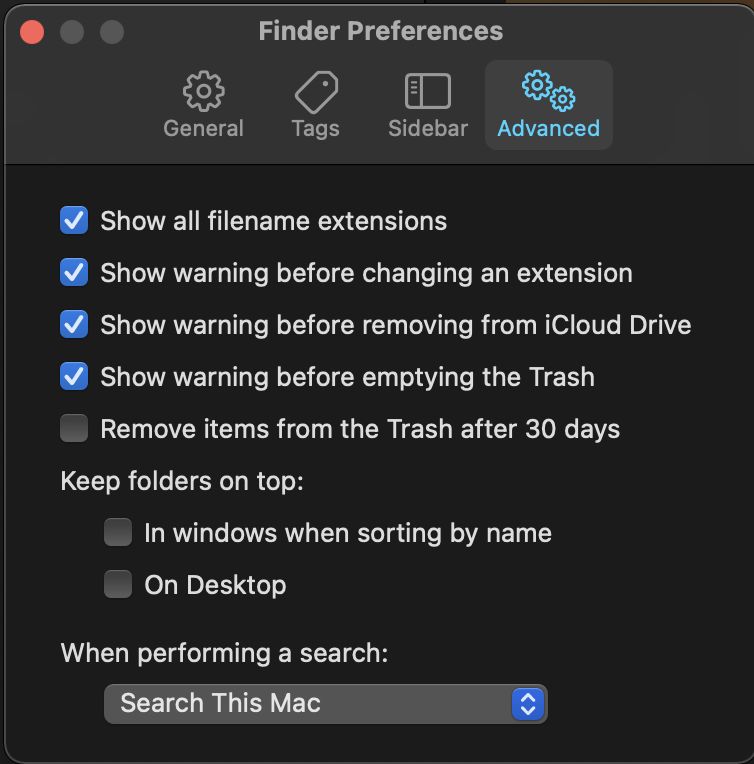
With Finder as the active app, click Finder, Preferences in the menu bar. Click the Advanced tab and put a check in "Show all file extensions in Finder". This prevents a malicious file from hiding its true extension.


One tip for Finder. In the Toolbar, there is a Group tool. If you have mixed file types in a folder it's very convenient to group by Application.


Tips on sorting in Finder


Safari

Keyboard shortcuts and gestures in Safari on Mac

Open Safari Preferences

General

    Uncheck Open "Safe" files after downloading. This a personal OpSec issue. I don't like for files that I download from the Internet to be opened automatically.

    New windows open with: Empty Page - I don't like to wait for a new window to load a page that I probably won't be using.

    New tabs open with: Empty Page


    Advanced

  •         Put a check in Show Develop menu in the menu bar.
  •         Put a check in Show Full Website Address


Extensions

I haven't used Safari as my daily driver before but I'm going to give it a go on the M1 since it's highly optimized for ARM and should give me the best battery life. I can see that I will have to give up some extensions that I am used to on Firefox like vertical tabs, UBlock Origin, Ghostery, etc. but if I get 12 hours of battery life it's a good trade-off.

To install extensions, click Safari in the menu bar, then Safari extensions... to locate extensions for Safari. Similar to Chrome, Firefox, and Edge, Safari extensions are now in the App Store. 


Grammarly

This is a grammar-checking extension. There are versions for Chrome, Firefox, Safari. You will have to create a free account and login to start using Grammarly. I highly recommend it. If you pay for a subscription you can run Grammarly in Microsoft apps.


LastPass 

Open Safari and click the link below to go to the Logmein download site.

How do I install the Safari app extension on my mac

  • Download the lastpass.dmg file.
  • Double click on the dmg, when it opens, drag it into the applications folder.
  • Double click to start it and log in.
  • Back in Safari.
  • Preferences, Extensions, enable the lastpass extension.


Buffer

This is an extension that lets you tweet from Safari. I find it handy when I find an info sec site that I want to share.

Open the App Store, click on Catagories, Safari Extensions. In the search bar enter buffer. You will see Buffer: Social Media Composer.

Click on Get, Install.


Activity monitor 

    Add a column for architecture. This lets you see which apps are running native and which are still Intel.


Time Machine

macOS includes a decent backup application called Time Machine. Since network engineers tend to install a lot of software from Github and other Internet locations, having a full backup is important. There are 3rd party tools like Carbon Copy Cloner and SuperDuper that have a lot more features. At the time of this blog (4-15-2021) SuperDuper hadn't been updated to work with the M1. 

I downloaded the Carbon Copy Cloner trial and it worked with the M1. The Caveat is that it can't make a bootable back. The work around is to install Big Sur manually and then restore. I think for the short term I'm going to stick with Time Machine. The snap shot feature of Carbon Copy Cloner shoulds good but I'm not sure I need it.

At a minimum, you should get Time Machine setup.

Also, I still use a Windows laptop when I'm at the office. If it got crypto locked all of my Dropbox and Goggle Drive files would get overwritten with encrypted versions. Having an offline backup is a necessity if you interact with Windows.

I bought a Elecife M.2 NVME PCIe SATA NGFF SSD Enclosure and a Western Digital 1TB WD Blue SN550 NVMe drive to hold the backups. The enclosure is very nice, tool-free, and lightweight. Not like the old days of using a 2.5" spinning hard drive in an external enclosure. 

As soon as I connected it, Time Machine opened and asked if I wanted to use it. After that, it does a backup every hour and saves weekly and monthly backups. I don't carry the drive with me so I don't do the hourly. I usually just connected it in the evening and let it do one or two backups. 

The NVME is so fast that the backups only take a few minutes.  

I noticed that my .zshrc file wasn't visible in the backup. Use "shift+cmd+." to show hidden files. 

Reference

Back up your Mac with Time Machine


Wrap Up

That does it for the basic setup of the OS. In the next post, I will dive into installing the tools a network engineer needs.


You can find Part Two here
You can find Part Three here


Sunday, October 25, 2020

Bad Neighbor cve-2020-16898

On October 13, 2020 Microsoft issued a security vulnerability notice - Windows TCP/IP Remote Code Execution Vulnerability. CVE-2020-16898 which affects Server 2019 and Windows 10.

From the notice:

"A remote code execution vulnerability exists when the Windows TCP/IP stack improperly handles ICMPv6 Router Advertisement packets. An attacker who successfully exploited this vulnerability could gain the ability to execute code on the target server or client.

To exploit this vulnerability, an attacker would have to send specially crafted ICMPv6 Router Advertisement packets to a remote Windows computer.

The update addresses the vulnerability by correcting how the Windows TCP/IP stack handles ICMPv6 Router Advertisement packets."

This is an unauthenticated vulnerability meaning you don't need any credentials on the domain to exploit it. A security researcher named Adam wrote a Proof of Concept exploit in python. The write up is extremely detailed and walks you through his development. The blog is available here - CVE-2020-16898 – Exploiting “Bad Neighbor” vulnerability The python script needed to exploit the vulnerability is available on the blog.

Mitigation

Microsoft does not recommend completely disabling IPv6 to mitigate. As a workaround, they provide this netsh script

Disable ICMPv6 RDNSS


netsh int ipv6 set int *INTERFACENUMBER* rabaseddnsconfig=disable

To find the interface number I found this Powershell script Enumerate IPv6 interfaces

The same GitHub has a script to disable RDNSS.

Example - I ran this from the Powershell ISE program:

PS C:\Windows\system32> Get-NetIPInterface -AddressFamily ipv6 | foreach{
   [PSCustomObject]@{
        "IfIndex"   = (& netsh int ipv6 show int $_.ifIndex) -match 'IfIndex' -replace "ifindex\s*:","" | Out-String
        "RFC"   = (& netsh int ipv6 show int $_.ifIndex) -match '(RFC 6106)' -replace "RA Based DNS Config \(RFC 6106\)\s*:","" | Out-String
    }
}

IfIndex RFC       
------- ---       
 5...    enable...
 6...    enable...
 1...    enable...

PS C:\Windows\system32> netsh int ipv6 set int 5 rabaseddnsconfig=disable
Ok.


Mitigation using a Cisco network switch

If you are using Cisco switches in your environment you can use the following to mitigate. I show this in the video.

From global configuration mode:

  • SW1(config)#ipv6 nd inspection policy policy-name HOST-POLICY
  • SW1(config-nd-inspection)#device-role host
Note: host is the default role so you don't have to enter the device-role.

From interface configuration mode

  • SW1(config)#int gig0/1
  • SW1(config-if)#ipv6 nd raguard attach-policy HOST-POLICY

Verify

SW1#sh ipv6 nd raguard policy HOST-POLICY

Policy RAGUARD configuration:

device-role host

Policy HOST-POLICY is applied on the following targets:

Target               Type Policy               Feature       Target range

Gi0/1               PORT RAGUARD            RA guard       vlan all


Mitigation using an Aruba switch running Provision software

In this example, an Aruba 5412 switch is used

sw2(config)# ipv6 ra-guard ports i1 log

Verify
sw2# show ipv6 ra-guard | exclude  No    0

 IPv6 RA Guard Information

  Port  Block RAs Blocked Redirs Blocked Log
  ----- ----- ----------- -------------- ---
  I1    Yes   0           0              Yes


Watch Bad Neighbor in action

I made a 2-minute video showing a Windows 2019 server blue screening when Adam's script is run against the server. After showing the blue screen I enable ra guard on a cisco switch and rerun the script. This prevents the blue screen. Here is a link to the video - Bad Neighbor cve 2020 16898

Juniper network devices

Juniper has announced that JunOS is vulnerable under certain conditions. Here is their bulletin:

2020-10 Security Bulletin: Junos OS:


References

CVE-2020-16898: Windows ICMPv6 Router Advertisement RRDNS Option Remote Code Execution Vulnerability - A detailed write up by Johannes Ulrich of SANS.

Cisco RA Guard blog

MITRE CVE for 2020-16898

ZEEK package to detect Bad Neighbor

There Goes The Neighborhood - Rapid 7 blog on Bad Neighborhood

Sunday, June 21, 2020

Disable Weak SSH/SSL Ciphers in Cisco IOS

For backward compatibility, most companies still ship deprecated, weak SSH, and SSL ciphers. Cisco is no exception. For the security of your network and to pass a penetration test you need to disable the weak ciphers, disable SSH v1 and disable TLS versions 1.0 and 1.1.

Firefox, Chrome and Microsoft all have committed to dropping support for TLS1.1. Firefox had actually done it in May 2020 but so many US Government sites quit working (during the Covid19 Hysteria) that they rolled back. Microsoft has set July 2020 to remove TLS 1.0/1.1 from IE, Edge Legacy, and Edge Chromium.

This blog covers Cisco IOS software. I plan to do another blog on IOS-XE and Nexus in the future.

Cisco has this document listing the Next Generation Encryption that is supported. 

For IOS-XE, this document has a lot of detail. Search for "ip ssh"

SSH

Network device manufacturers (all of them I think) enabling SSH v1 by default really bothers me. Most Windows users connect with Putty which supports SSH v2. You should set Putty to default to SSH V2:


MAC/Linux users will be using OpenSSh which also supports SSH V2. You may run into situations on MAC/Linux where the weak ciphers are used and OpenSSH won't connect.

You will see a message similar to
ssh mhubbard@10.20.1.7
Unable to negotiate with 10.20.1.7 port 22: no matching key exchange method found. Their offer: diffie-hellman-group1-sha1
 
This is easy to resolve:

1. Open the SSH config file - gedit ~/.ssh/config
2. Add the necessary host IP and ciphers. KEX is Key Exchange:
        host 10.20.1.7
              KexAlgorithms +diffie-hellman-group1-sha1
              Ciphers 3des-cbc

On a really old switch, I ran into a host key exchange algorithm that I had never even heard of "ssh-dss". I had to add HostKeyAlgorithms=+ssh-dss to connect.

If you will only log into this device once or twice you can use the following without modifying the SSH config file:
ssh -oKexAlgorithms=+diffie-hellman-group1-sha1 10.20.1.7
You can use the "-G" switch and SSH will show you the ciphers that SSH is offering:
ssh -G mhubbard@10.20.1.7


The OpenSSH site has a page dedicated to legacy ciphers
openssh legacy ciphers

Removing weak SSH algorithms


All of the commands shown are from a 2960x running:
Version 15.2(4)E8 - Mainstream deployment (MD) from 18-Mar-2019

First, let's look at the default SSH setup
show ip ssh
SSH Enabled - version 1.99
Authentication methods:publickey,keyboard-interactive,password
Authentication Publickey Algorithms:x509v3-ssh-rsa,ssh-rsa
Hostkey Algorithms:x509v3-ssh-rsa,ssh-rsa
Encryption Algorithms:aes128-ctr,aes192-ctr,aes256-ctr,aes128-cbc,3des-cbc,aes192-cbcc
MAC Algorithms:hmac-sha1,hmac-sha1-96
Authentication timeout: 120 secs; Authentication retries: 3
Minimum expected Diffie Hellman key size : 1024 bits
IOS Keys in SECSH format(ssh-rsa, base64 encoded): TP-self-signed-1676064512
ssh-rsa AAAAB3NzaC1yc2EAAAADAQABAAAAgQCjsPhP/zpPgra0d3wzzt8fDZnKL4sUtCh0DVmV0fH6
m+/Xke7IRMvxg2OEk333uHlKD+Ww6w8D2eMOzY7/R6edHA4UtKXwohJN1OZKS1ltL4tDSZSIeLO3juOL
GfxKBtvGd30Y2jzYYMmTQGP9u1VrKdQRKAU13/c+iOiQPi3Q4w==          

The "version 1.99" means that it supports SSH v1 and v2. We want to disable v1 and remove the cbc and 3Des ciphers. These are "Cipher Block Chain" algorithms and will cause a failure during a penetration test.

From global configuration mode enter the following:
ip ssh version 2 !disable V1

ip ssh server algorithm encryption aes256-ctr aes128-ctr

ip ssh server algorithm mac hmac-sha1

no ip ssh server algorithm mac hmac-sha1-96

You should also perform the following to harden SSH

crypto key generate rsa modulus 4096 label SSH-KEYS

!Note that generating 4096 bit keys can take up to 3 minutes.

ip ssh rsa keypair-name SSH-KEYS !associate keys to SSH

!set minimum bit size for client connection                                

ip ssh dh min size 2048


Let's see what SSH looks like now:
show ip ssh
SSH Enabled - version 2.0
Authentication methods:publickey,keyboard-interactive,password
Authentication Publickey Algorithms:x509v3-ssh-rsa,ssh-rsa
Hostkey Algorithms:x509v3-ssh-rsa,ssh-rsa
ip ssh server algorithm encryption aes256-ctr aes128-ctr
MAC Algorithms:hmac-sha1
Authentication timeout: 120 secs; Authentication retries: 3
Minimum expected Diffie Hellman key size : 2048 bits
IOS Keys in SECSH format(ssh-rsa, base64 encoded): SSH-KEYS
ssh-rsa AAAAB3NzaC1yc2EAAAADAQABAAACAQC5KQxmPn8tyfK+9fq6NC75whEQD02POopz9SE/SKeP
ibO8KM7kSVdwy7anUhmgiX5jGmpecTFoP+txdA+KuEszAL5x8aeNZsPAykqBU6JClIz3fnMKjgoIqFlZ
mwhL0Qow4OGrd52EkRNRxAc2TYpBr5p0ICdaxeHd7etzgXjkwcZpQ1e2kqvV9XU94LBO1R93AgYYLCsT
nFsKga4tvvikXqKuwe3tfWKzNfO4LY1mZE9FXecoNW0Kb8p4U/pO/w69oEbHmmH7BfgWSHCCVZlgBhcf
DtJa+oVnqHrMwVza+ViTMQLghvt63zewvTN2I235K6W+GhgUmx6p+Q62Rsrfrc+4K5ECVKNf7fzmlg6X
Zs+P3WKgP8rh2z7ObTT917pp1VXw4pUkeqCCtMEmkiICO0TzU1dXyuoEPNGeES8wxYOSdaMA0DGEL34p
Ccb6hb1RQbHjSjQZfDOXaZ0UwXtVJ07v7PR7fOhFHem58w2P+qmCwnEYFZrZhizR1y1SUDxs6Z7vZV98
cyoTo98dWG4WDGiHM1loLq3SA3OMfceq5g2waPVBNmpZlzXitCTern1bZ15zdLvhxY1589A/TaSZuMeP
lhjQ1mlYp3qf0Jt7eoaWNPRV/i0VUaRfxNBefiNBI5pS8ybj3bhfWpZe8QOOMAHRahAPPI9PasOBuMHR

In 2020, this is still pretty lame, but keep reading! Cisco has been adding newer ciphers and removing some deprecated ciphers in newer IOS versions. You can check what's available on your version using:

test(config)#ip ssh server algorithm encryption ?
  3des-cbc    Three-key 3DES in CBC mode
  aes128-cbc  AES with 128-bit key in CBC mode
  aes128-ctr  AES with 128-bit key in CTR mode
  aes192-cbc  AES with 192-bit key in CBC mode
  aes192-ctr  AES with 192-bit key in CTR mode
  aes256-cbc  AES with 256-bit key in CBC mode
  aes256-ctr  AES with 256-bit key in CTR mode

test(config)#ip ssh server algorithm mac ?
  hmac-sha1     HMAC-SHA1 (digest length = key length = 160 bits)
  hmac-sha1-96  HMAC-SHA1-96 (digest length = 96 bits, key length = 160 bits)

If you look at Authentication in the output you notice that Public key is an option. I wrote a blog showing how to use SSH keys instead of passwords -
Authenticating to Cisco devices using SSH keys


Weak SSL ciphers


First, we will look at the current secure server settings. To see all possible secure server settings:
sh ip http server
  all             HTTP server all information
  connection      HTTP server connection information
  external        HTTP external registration
  history         HTTP server history information
  secure          HTTP secure server status information
  session-module  HTTP server application session module information
  statistics      HTTP server statistics information
  status          HTTP server status information

sh ip http server all        
HTTP server status: Disabled
HTTP server port: 80
HTTP server authentication method: local
HTTP server access class: 0
HTTP server base path: flash:/c2960x-universalk9-mz.152-4.E8/html
HTTP server help root:
Maximum number of concurrent server connections allowed: 16
Maximum number of secondary server connections allowed: 5
Server idle time-out: 180 seconds
Server life time-out: 180 seconds
Server session idle time-out: 180 seconds
Maximum number of requests allowed on a connection: 25
HTTP server active session modules: ALL
HTTP secure server capability: Present
HTTP secure server status: Enabled
HTTP secure server port: 443
HTTP secure server ciphersuite:  dhe-aes-128-cbc-sha dhe-aes-256-cbc-sha
        edche-rsa-aes-256-cbc-sha edche-rsa-rc4-128-sha

HTTP secure server client authentication: Disabled
HTTP secure server trustpoint:
HTTP secure server active session modules: ALL

To see who is connected to the switch over TLS:
sh ip http server connection

HTTP server current connections:
local-ipaddress:port  remote-ipaddress:port in-bytes   out-bytes
  192.168.10.31:443    192.168.10.211:55014 1394       586227


Viewing available current cipher suites


ip http secure-ciphersuite ?

  aes-128-cbc-sha            Encryption type tls_rsa_with_aes_cbc_128_sha
                             ciphersuite
  aes-256-cbc-sha            Encryption type tls_rsa_with_aes_cbc_256_sha
                             ciphersuite
  dhe-aes-128-cbc-sha        Encryption type tls_dhe_rsa_with_aes_128_cbc_sha
                             ciphersuite
  dhe-aes-256-cbc-sha        Encryption type tls_dhe_rsa_with_aes_256_cbc_sha
                             ciphersuite
  edche-rsa-aes-256-cbc-sha  Encryption type tls_ecdhe_rsa_aes_256_cbc_sha
                             ciphersuite
  edche-rsa-rc4-128-sha      Encryption type tls_ecdhe_rsa_rc4_128_sha
                             ciphersuite
  null-sha                   Encryption type tls_rsa_with_null_sha ciphersuite


Notice that rc4 and Null are supported!

To verify what was being offered by the switch I ran the nmap ssl-cert and ciphers script.
sudo nmap --script ssl-cert,ssl-enum-ciphers -p 443 192.168.10.31
Nmap scan report for 10.241.3.40
Host is up, received echo-reply ttl 254 (0.10s latency).
Scanned at 2020-06-18 15:28:06 PDT for 3s

PORT     STATE  SERVICE       REASON
443/tcp  open   https         syn-ack ttl 254
| ssl-cert: Subject: commonName=IOS-Self-Signed-Certificate-1302447744
| Issuer: commonName=IOS-Self-Signed-Certificate-1302447744
| Public Key type: rsa
| Public Key bits: 1024
| Signature Algorithm: sha1WithRSAEncryption
| Not valid before: 2020-06-16T22:55:16
| Not valid after:  2030-01-01T00:00:00
| MD5:   c522 61ff 31c4 c9aa 971d 7cfd 4eb7 14de
| SHA-1: 50fb 7c7d d6a8 86c0 ba67 1293 11d7 f529 058e e1de
| -----BEGIN CERTIFICATE-----
| MIICKzCCAZSgAwIBAgIBATANBgkqhkiG9w0BAQUFADAxMS8wLQYDVQQDEyZJT1Mt
| U2VsZi1TaWduZWQtQ2VydGlmaWNhdGUtMTMwMjQ0Nzc0NDAeFw0yMDA2MTYyMjU1
| MTZaFw0zMDAxMDEwMDAwMDBaMDExLzAtBgNVBAMTJklPUy1TZWxmLVNpZ25lZC1D
| ZXJ0aWZpY2F0ZS0xMzAyNDQ3NzQ0MIGfMA0GCSqGSIb3DQEBAQUAA4GNADCBiQKB
| gQDCgxwOBYowFY7GgS3Q81u6CRTzcaEb2SwZvzSsjTLmHPqrB7OYgGukAgs19+Xa
| 8jRS3jY4Q492RtpyBAb4BU9naHXRKvD2zB5e9QDreeFOf73If6f8V/BtjqSozYZW
| N0RPpgqIWVbgQbkr1eBbnXgE1/TO7czYcjae/OTSZwQL1QIDAQABo1MwUTAPBgNV
| HRMBAf8EBTADAQH/MB8GA1UdIwQYMBaAFDL08Ihv1OFKYBqkbHJ5wpXt3G7IMB0G
| A1UdDgQWBBQy9PCIb9ThSmAapGxyecKV7dxuyDANBgkqhkiG9w0BAQUFAAOBgQCH
| GxSZ29CUBrvCkDU4knDw9WmdLKqgMl88+dpZmOO758+o4B8lMT0f+Ixny7drFIJ7
| rrkhrqpCHnLDJtXYcINiaKASs3tPIpQ21nQ1r5WTdW8GqaTVcOBIFG0KWlJGVmsF
| RepCnGblGV/3mrUWImNU8xwY+uZS2vAFKAVXYVLk5w==
|_-----END CERTIFICATE-----
| ssl-enum-ciphers:
|   TLSv1.1:
|     ciphers:
|       TLS_ECDHE_RSA_WITH_AES_128_CBC_SHA (secp256r1) - A
|       TLS_ECDHE_RSA_WITH_AES_256_CBC_SHA (secp256r1) - A
|     compressors:
|       NULL
|     cipher preference: client
|     warnings:
|       Weak certificate signature: SHA1
|   TLSv1.2:
|     ciphers:
|       TLS_ECDHE_RSA_WITH_AES_128_CBC_SHA (secp256r1) - A
|       TLS_ECDHE_RSA_WITH_AES_256_CBC_SHA (secp256r1) - A
|     compressors:
|       NULL
|     cipher preference: client
|     warnings:
|       Weak certificate signature: SHA1
|_  least strength: A
465/tcp  closed smtps         reset ttl 254
993/tcp  closed imaps         reset ttl 254
995/tcp  closed pop3s         reset ttl 254
3389/tcp closed ms-wbt-server reset ttl 254

NSE: Script Post-scanning.
NSE: Starting runlevel 1 (of 1) scan.
Initiating NSE at 15:28
Completed NSE at 15:28, 0.00s elapsed
Read data files from: /usr/local/bin/../share/nmap
Nmap done: 1 IP address (1 host up) scanned in 2.71 seconds
           Raw packets sent: 9 (372B) | Rcvd: 6 (232B)


To secure TLS I upgraded to 15.2.7E2. This release allows TLS 1.0 and 1.1 to be disabled. To pass a penetration test you will need to disable both. Once the upgrade is complete run the following:
test(config)#ip http secure-ciphersuite ?
  aes-128-cbc-sha            Encryption type tls_rsa_with_aes_cbc_128_sha ciphersuite
  aes-256-cbc-sha            Encryption type tls_rsa_with_aes_cbc_256_sha ciphersuite
  dhe-aes-128-cbc-sha        Encryption type tls_dhe_rsa_with_aes_128_cbc_sha ciphersuite
  edche-rsa-aes-256-cbc-sha  Encryption type tls_ecdhe_rsa_aes_256_cbc_sha ciphersuite


test(config)#ip http secure-ciphersuite edche-rsa-aes-256-cbc-sha aes-256-cbc-sha
test(config)#ip http tls-version ?
  TLSv1.0  Set TLSv1.0 version Only
  TLSv1.1  Set TLSv1.1 version Only
  TLSv1.2  Set TLSv1.2 version Only
test(config)#ip http tls-version tlsv1.2
To verify, I re-ran the nmap ssl-cert and ciphers scripts. This time only TLS 1.2 is enabled.
sudo nmap --script ssl-cert,ssl-enum-ciphers -p 443 192.168.10.31
Nmap scan report for 192.168.10.31
Host is up, received echo-reply ttl 254 (0.0072s latency).
Scanned at 2020-06-18 15:50:03 PDT for 3s

PORT    STATE SERVICE REASON
443/tcp open  https   syn-ack ttl 254
| ssl-cert: Subject: commonName=IOS-Self-Signed-Certificate-1302447744
| Issuer: commonName=IOS-Self-Signed-Certificate-1302447744
| Public Key type: rsa
| Public Key bits: 1024
| Signature Algorithm: sha1WithRSAEncryption
| Not valid before: 2020-06-16T22:55:16
| Not valid after:  2030-01-01T00:00:00
| MD5:   c522 61ff 31c4 c9aa 971d 7cfd 4eb7 14de
| SHA-1: 50fb 7c7d d6a8 86c0 ba67 1293 11d7 f529 058e e1de
| -----BEGIN CERTIFICATE-----
| MIICKzCCAZSgAwIBAgIBATANBgkqhkiG9w0BAQUFADAxMS8wLQYDVQQDEyZJT1Mt
| U2VsZi1TaWduZWQtQ2VydGlmaWNhdGUtMTMwMjQ0Nzc0NDAeFw0yMDA2MTYyMjU1
| MTZaFw0zMDAxMDEwMDAwMDBaMDExLzAtBgNVBAMTJklPUy1TZWxmLVNpZ25lZC1D
| ZXJ0aWZpY2F0ZS0xMzAyNDQ3NzQ0MIGfMA0GCSqGSIb3DQEBAQUAA4GNADCBiQKB
| gQDCgxwOBYowFY7GgS3Q81u6CRTzcaEb2SwZvzSsjTLmHPqrB7OYgGukAgs19+Xa
| 8jRS3jY4Q492RtpyBAb4BU9naHXRKvD2zB5e9QDreeFOf73If6f8V/BtjqSozYZW
| N0RPpgqIWVbgQbkr1eBbnXgE1/TO7czYcjae/OTSZwQL1QIDAQABo1MwUTAPBgNV
| HRMBAf8EBTADAQH/MB8GA1UdIwQYMBaAFDL08Ihv1OFKYBqkbHJ5wpXt3G7IMB0G
| A1UdDgQWBBQy9PCIb9ThSmAapGxyecKV7dxuyDANBgkqhkiG9w0BAQUFAAOBgQCH
| GxSZ29CUBrvCkDU4knDw9WmdLKqgMl88+dpZmOO758+o4B8lMT0f+Ixny7drFIJ7
| rrkhrqpCHnLDJtXYcINiaKASs3tPIpQ21nQ1r5WTdW8GqaTVcOBIFG0KWlJGVmsF
| RepCnGblGV/3mrUWImNU8xwY+uZS2vAFKAVXYVLk5w==
|_-----END CERTIFICATE-----
| ssl-enum-ciphers:
|   TLSv1.2:
|     ciphers:
|       TLS_ECDHE_RSA_WITH_AES_128_CBC_SHA (secp256r1) - A
|       TLS_ECDHE_RSA_WITH_AES_256_CBC_SHA (secp256r1) - A
|       TLS_RSA_WITH_AES_256_CBC_SHA (rsa 1024) - A
|     compressors:
|       NULL
|     cipher preference: client
|     warnings:
|       Weak certificate signature: SHA1
|_  least strength: A

NSE: Script Post-scanning.
NSE: Starting runlevel 1 (of 1) scan.
Initiating NSE at 15:50
Completed NSE at 15:50, 0.00s elapsed
Read data files from: /usr/local/bin/../share/nmap
Nmap done: 1 IP address (1 host up) scanned in 2.99 seconds
           Raw packets sent: 5 (196B) | Rcvd: 2 (72B)

Results

You can see that it still uses SHA1 as the certificate signature. You can use  Ciphersuite Info to compare different ciphers.

What about SSH?

Let's see what's new for SSH in 15.7.2E2.
ip ssh server algorithm mac ?
  hmac-sha1      HMAC-SHA1 (digest length = key length = 160 bits)
  hmac-sha1-96   HMAC-SHA1-96 (digest length = 96 bits, key length = 160 bits)
  hmac-sha2-256  HMAC-SHA2-256 (digest length = 256 bits, key length = 256
                 bits)
  hmac-sha2-512  HMAC-SHA2-512 (digest length = 512 bits, key length = 512
                 bits)


ip ssh serv algorithm encryption ?


3des-cbc    Three-key 3DES in CBC mode
  aes128-cbc  AES with 128-bit key in CBC mode
  aes128-ctr  AES with 128-bit key in CTR mode
  aes192-cbc  AES with 192-bit key in CBC mode
  aes192-ctr  AES with 192-bit key in CTR mode
  aes256-cbc  AES with 256-bit key in CBC mode
  aes256-ctr  AES with 256-bit key in CTR mode


Now we can eliminate the ancient HMAC-SHA1 and CBC ciphers from our switch!

First, we will add the sha2 HMACs
ip ssh server algorithm mac hmac-sha2-256 hmac-sha2-512

Then remove the sha1 hmacs
no ip ssh server algorithm mac hmac-sha1
no ip ssh server algorithm mac hmac-sha1-96

And now the encryption
ip ssh server algorithm encryption aes256-ctr aes192-ctr aes128-ctr

The results

show ip ssh

SSH Enabled - version 2.0
Authentication methods:publickey,keyboard-interactive,password
Authentication Publickey Algorithms:x509v3-ssh-rsa,ssh-rsa
Hostkey Algorithms:x509v3-ssh-rsa,ssh-rsa
Encryption Algorithms:aes256-ctr,aes192-ctr,aes128-ctr
MAC Algorithms:hmac-sha2-256,hmac-sha2-512
KEX Algorithms:diffie-hellman-group-exchange-sha1,diffie-hellman-group14-sha1
Authentication timeout: 120 secs; Authentication retries: 3
Minimum expected Diffie Hellman key size : 2048 bits
IOS Keys in SECSH format(ssh-rsa, base64 encoded): SSH-KEYS
Modulus Size : 4096 bits
ssh-rsa AAAAB3NzaC1yc2EAAAADAQABAAACAQDCsyuZ8/lMCNHSLREb6vGQoBVehYQQI0+eJlanuyq5
f+iTqFcceR7vvXP14JhHmXe2lkygOZ8VIeilMJkpS8q748TaBL9QfmUAdDkbbk1wYPNKM2sLn/ACuerf
ImNa4vQFNaP28zqaCMhre/Z0DCRJvDnOXs2fepQnQZ6ZvbOgwMRw6rvTiLcPYlB46VlaS6T1ogEbsPLz
HG1e2UeGOnxyIU9j99+sUq3h5omoxtOd33c7ygyBgghBm+G4rHoD4EsJmejK2/Ai1PsjHIN16EaTAB0Y
MiIFByAYr4/Hr+6ANejxDrFpeY3DDBTvXIcES3S+C/Ch6JEoFVfHufc5ni8OReE7KQhrBctNfhoXvFRO
wITNNyyu/jk1LLDTaLFbL/auw/eXGXlXXerWRFY6HvmAbQannl9wryvy97Hm4LJVO+DtTspwvw4IKrQT
HDMdyXvTI6RMjIlGb/7hiUeFb33wx7sw/DwkgjyUCWh8R8nCEoLfpz7qOchW2/WSj+608m62Eh6WDy5q
qkDpstQRD7AbE2OBtiuYgYJaNJfZ1qhIQXlvtQCTgRRS2TvInnoGg+STD2+lWR5WufgKEO778tNDXt3H
YRSdD2N1YcjXG+y0hB/xjvWSoMkr+G2Btxtm8QPgvXQRe9aFU/kALMBKBJ6Q+rDXr2QbyA7zpDudkAn3

Security Header Enhancements

For IOS-XE devices, starting with 16.4.1, the Nginx/HTTP headers have the following settings for increased security:

Nginx – Web user interface - 
Nginx applications take care of the headers for their response. As Web UI is one of the NginX application, it adds the security headers. 

The three headers are the following:

  •     X-XSS-Protection: 1; mode=block
  •     X-Frame-Options: SAMEORIGIN
  •     X-Content-Type-Options: nosniff


Do the same thing to your Linux Servers

There is a good chance your organization is running some Linux servers. Out of the box, CentOS/Ubuntu will have several weak ciphers. It's very easy to correct that but you will need root privileges.

First, we will check what ciphers your server is offering. If the server has a public IP address you can go to https://sshcheck.com and enter the FQDN or the IP address. You will get back a comprehensive report back with suggestions on which items should be disabled.

If the server is internal you can use nmap's ssh-enum script:
sudo nmap --script ssh2-enum-algos 192.168.10.239

This will return a list of the crypto offered by your server.

Update the sshd config file

The sshd config file is located at /etc/ssh. We need to open it and add the suites we want. First we will make a backup copy.

sudo cd /etc/ssh
sudo cp sshd_config sshd_config.bak
sudo nano sshd_config

Add the following (Make sure these fit your company's security policies)
ciphers chacha20-poly1305@openssh.com,aes256-gcm@openssh.com,aes128-gcm@openssh.com,aes256-ctr,aes192-ctr,aes128-ctr

macs umac-128-etm@openssh.com,hmac-sha2-256-etm@openssh.com,hmac-sha2-512-etm@openssh.com,umac-128@openssh.com,hmac-sha2-256

KexAlgorithms diffie-hellman-group14-sha256,diffie-hellman-group16-sha512,diffie-hellman-group18-sha512,diffie-hellman-group-exchange-sha256,curve25519-sha256,curve25519-sh$

You can add these anywhere. I put them just below the section
"# Ciphers and keying".

Press ctrl+x, enter Y to save the file and enter to complete.

You can use
sudo sshd -t
to verify the changes. If there are no mistakes in the configuration file nothing will be displayed. If there are errors you get a message with the line number where the error occurred.

You can use
sshd -T
to dump the current ssh configuration.

Now we just need to restart the ssh daemon;
sudo systemctl restart sshd


Check your work

Refresh the sshcheck page or rerun nmap. You should see just the cipher suites you entered. Here is nmap against my server:
nmap --script ssh2-enum-algos -sV -p22 hubbardonnetworking.com

Starting Nmap 7.70 ( https://nmap.org ) at 2020-06-24 22:15 PDT
Nmap scan report for hubbardonnetworking.com (107.170.203.230)
Host is up (0.026s latency).

PORT   STATE SERVICE VERSION
22/tcp open  ssh     OpenSSH 7.4 (protocol 2.0)
| ssh2-enum-algos:
|   kex_algorithms: (6)
|       diffie-hellman-group14-sha256
|       diffie-hellman-group16-sha512
|       diffie-hellman-group18-sha512
|       diffie-hellman-group-exchange-sha256
|       curve25519-sha256
|       curve25519-sha256@libssh.org
|   server_host_key_algorithms: (5)
|       ssh-rsa
|       rsa-sha2-512
|       rsa-sha2-256
|       ecdsa-sha2-nistp256
|       ssh-ed25519
|   encryption_algorithms: (6)
|       chacha20-poly1305@openssh.com
|       aes256-gcm@openssh.com
|       aes128-gcm@openssh.com
|       aes256-ctr
|       aes192-ctr
|       aes128-ctr
|   mac_algorithms: (5)
|       umac-128-etm@openssh.com
|       hmac-sha2-256-etm@openssh.com
|       hmac-sha2-512-etm@openssh.com
|       umac-128@openssh.com
|       hmac-sha2-256
|   compression_algorithms: (2)
|       none
|_      zlib@openssh.com

Service detection performed. Please report any incorrect results at https://nmap.org/submit/ .
Nmap done: 1 IP address (1 host up) scanned in 0.70 seconds
 
I have a Python script that presents a menu with several nmap security scripts. If you haven't used nmap much it is worth a look.

Python tool for nmap scripts

References

Putty SSH V2
SSH Algorithms for Common Criteria Certification
Cisco IOS HTTP Services Command Reference

Sunday, March 8, 2020

Southern California Linux Expo SCALE 18x

I missed last year's Linux Expo because I had the flu. This year I was healthy but several speakers canceled and attendance was down because of the Covid-19 travel restrictions that companies have instituted! 
 
Microsoft was the title sponsor and there were some comments that "it's funny that Microsoft is the title sponsor and now we have virus problems" going around.

Several talks were canceled but the organizers did a fantastic job of finding new speakers and pulling off a great event! They had hand sanitizer everywhere and provided sanitizing wipes if you held the microphone to ask a question after a talk.

I got to catch up with a former co-worker and even a current customer. I have found that the "Hallway" track is one of the best parts of a conference and it was true this year!

If you have never attended SCALE I highly recommend it. The cost for all four days is only $85 and that includes as many talks as you want to attend, a party on Friday night, a CTF event all three days and a decent sized Expo floor.

The last two years DC Darknet has been there. They are the group that does the badges for Defcon and their booth is interactive - you can try your hand at lock picking, buy a kit for a Defcon badge and do the soldering at a table beside their booth. If you have never soldered, they will train you!

There is plenty of SWAG at the vendor booths, I scored "Red Hat" and "Salt stack" ball caps along with lots of stickers and Tee shirts. Even with the low entry fee, SCALE provides a T-shirt, lanyard, coffee mug and a bag to carry it in!

Saturday's keynote by Paul Vixie was eye-opening! He discussed DNS over HTTPS and why it will cause more problems than it solves! If they post a transcript I will add a link to it.

Even with the cancellations, there were still a lot of talks to attend! I managed to sit in on a Security Onion talk that was one of the best talks I have attended anywhere. The founder of the project, Doug Burks, gave the talk and his enthusiasm for the project was contagious! I plan to download the ISO and give it a good look. I think for smaller companies it is a great tool to secure their network.

I also attended a Security for Noobs talks. It was very good and generated some interesting questions at the end of the talk. The speaker posted the presentation here

I had planned to sit in on several embedded Linux talks put on by the Core Embedded Linux Project of the Linux Foundation. I attend a couple two years ago and they were great! You brought a Beagle Bone Black, compiled a Linux kernel and built a fully functional embedded device. Unfortunately, the entire track was canceled because of travel restrictions.

I had also planned to attend the Linux Professionals Institute LPIC-1 Preparation Session on Friday but got tied up at work and missed it. I was hoping to take the exam on Sunday as they offer it for $99! But I was too tired to cram on Friday night and after missing the prep session decided to wait. 

Sunday's keynote was from a man named Sha that had been convicted of assault with a firearm and sentenced to 27 years to life. A woman named Jessica McKellar volunteers at San Quentin Prison and teaches Python to the inmates. When Sha's sentence was commuted, she hired him. Sha's presentation was amazing. When the Q&A came up I told Sha that I have heard hundreds for presentations and his was one of the best. I asked him to start a YouTube channel and keep us updated on his progress. I got a large round of applause!

All in all, it was a good SCALE!